
From Paper to Pixels: Learn to Visualize 2D Layouts in Lumion with Confidence
Architects, interior designers, and students all know the challenge of explaining ideas using flat drawings. While 2D layouts are essential, they rarely capture the true essence of a design. Clients often struggle to imagine how spaces will look and feel when only floor plans are shown. This is where Lumion steps in as a game-changer. By learning to visualize 2D layouts in Lumion, you can transform static drawings into engaging, lifelike presentations.
Lumion bridges the gap between design intention and visual clarity. Instead of relying only on sketches or CAD drawings, you can convert your layouts into immersive visuals that speak volumes. Whether it’s a residential project, a commercial space, or a landscape plan, Lumion enables you to communicate effectively and persuasively.
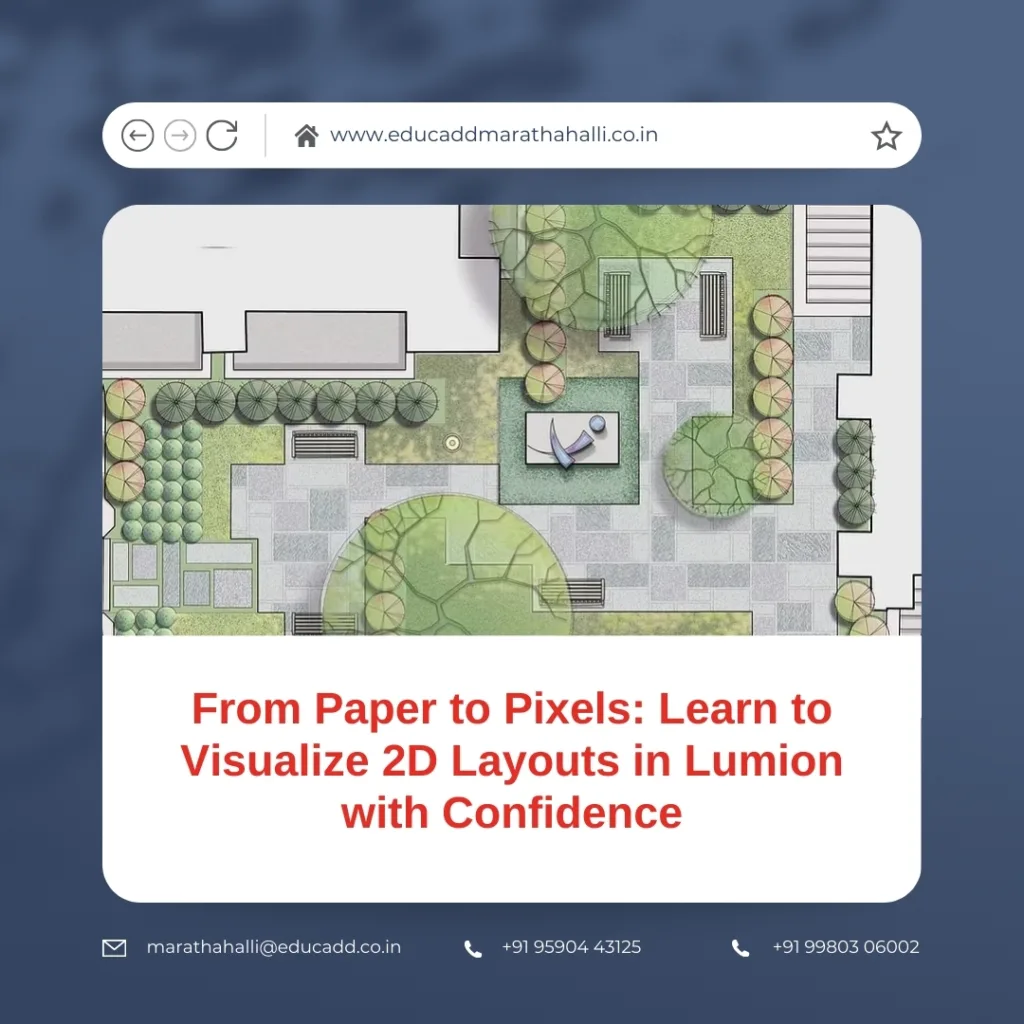
Visualize 2D Layouts Lumion
This blog will take you through the journey of mastering 2D visualization with Lumion. We’ll explore fundamentals, detailed steps, common hurdles, expert tricks, and advanced techniques that will push your skills to the next level.
H2: Why 2D Layout Visualization in Lumion Matters
Traditional 2D layouts present information clearly for technical teams, but they often fall short when used in client discussions. For non-technical stakeholders, flat drawings can feel confusing and abstract. Learning to visualize 2D layouts in Lumion solves this communication gap by offering a realistic preview of the design.
Moreover, Lumion adds speed and efficiency. What once required hours of manual rendering can now be done quickly, thanks to its drag-and-drop workflow and massive library of objects and textures. Designers no longer need to rely solely on external rendering specialists. Instead, they can produce high-quality visuals in-house.
Another major advantage is storytelling. Visualization is not just about showing walls and furniture; it’s about creating an atmosphere. Lighting, textures, colors, and landscaping all play vital roles. Lumion’s features allow you to demonstrate how a design looks in morning light, at dusk, or even in heavy rain. This flexibility elevates your presentations and makes your proposals more convincing.
Step-by-Step Guide to Visualizing 2D Layouts in Lumion
While Lumion is intuitive, following a structured workflow ensures smooth results. Let’s break down the process:
Step 1: Preparing the Layout
Start with a clean 2D plan from software such as AutoCAD, Revit, or SketchUp. Ensure dimensions are accurate, layers are organized, and unnecessary details are removed. A simplified base file will import more easily into Lumion.
Step 2: Importing into Lumion
Use Lumion’s import function to bring your drawing into the workspace. The software supports formats like DWG, SKP, and FBX. Always double-check alignment with the grid to maintain scale and proportions.
Step 3: Adding Materials
Assign realistic textures to your surfaces. Wood flooring, polished tiles, painted walls, and reflective glass all enhance the look of your layout. Lumion’s material editor makes this step simple, but you can also upload custom textures for greater control.
Step 4: Enhancing with Objects
Populate your layout with furniture, fixtures, and decorative items. Lumion’s content library includes thousands of ready-to-use objects, from sofas and beds to plants and outdoor elements. Keep placements minimal yet functional to avoid overwhelming the design.
Step 5: Perfecting Lighting
Lighting defines mood and perception. Experiment with natural daylight, soft ambient lighting, or artificial fixtures depending on the space. Adjust intensity, shadows, and direction for a balanced, realistic effect.
Step 6: Rendering the Output
Once everything is in place, select your camera views and render. Lumion allows high-resolution image exports, animated flythroughs, and even panoramic presentations. Sharing these outputs makes your design accessible to clients and collaborators.
By following this workflow, anyone can learn to visualize 2D layouts in Lumion with precision and creativity.
Smart Tips to Elevate Your Layout Visualization
Beginners often achieve good results, but small adjustments can transform good visuals into great ones. Here are some expert-approved tips:
-
Organize with Layers: Keep walls, furniture, lighting, and landscaping on separate layers. This organization makes edits quick and reduces errors.
-
Think About Scale: Always cross-check object dimensions. A chair too large or a window too small can break realism instantly.
-
Highlight Key Spaces: Use spotlighting or creative angles to emphasize important areas like living rooms, lobbies, or entrances.
-
Add Contextual Landscaping: Even minimal greenery or pathways make layouts feel grounded and realistic.
-
Experiment with Views: Combine bird’s-eye perspectives with eye-level shots. Clients appreciate understanding both functionality and atmosphere.
-
Use Effects Wisely: Depth of field, reflections, and global illumination are powerful tools. Yet, overuse can distract. Keep enhancements subtle.
These techniques allow you to produce clean, polished outputs while keeping the design narrative clear.
Overcoming Common Challenges in Lumion Layout Visualization
Even with an intuitive platform, designers face a few hurdles. Let’s address the most frequent ones and practical solutions.
1. Scaling Issues
If layouts appear distorted, revisit your CAD software and confirm units are correct before importing. Lumion also allows scaling adjustments during setup.
2. Overcrowding
Too many objects make layouts messy. Always prioritize clarity. Use objects to support functionality, not clutter the scene.
3. Flat Lighting
Layouts often appear dull without proper lighting. Combine natural and artificial sources for richer depth and shadows.
4. Texture Mismatches
Unrealistic materials ruin immersion. Match textures with actual finishes specified in your design. Import high-resolution options for better quality.
5. Slow Rendering
Heavy scenes with excessive details can slow performance. Optimize by reducing polygon counts, lowering temporary quality settings, or hiding unnecessary elements.
By troubleshooting these issues, you can streamline your workflow and achieve reliable results every time.
Advanced Approaches to Master Layout Visualization
Once you’re comfortable with the basics, advanced strategies can take your skills to the next level.
-
Animated Walkthroughs: Create smooth camera paths that let viewers “walk” through the design. This makes layouts come alive.
-
Interactive Models: Use section views, cutaways, or clickable features to let clients explore spaces in detail.
-
Lighting Scenarios: Demonstrate how spaces look in different times of day or weather conditions. This adds realism and flexibility.
-
Environmental Context: Add surroundings like neighboring buildings, streets, or parks to situate the layout within its real-world setting.
-
Post-Processing Effects: Adjust brightness, contrast, saturation, or lens flare after rendering. These tweaks refine the final output.
-
Collaborative Reviews: Share renders with teams early. Lumion Cloud or exported media ensures feedback is quick and accurate.
By adopting these advanced practices, you’ll not only learn to visualize 2D layouts in Lumion but also master the art of presentation and storytelling.
Conclusion: Turning 2D Ideas into 3D Experiences
Flat layouts may form the foundation of every project, but true impact comes when designs are brought to life visually. Lumion makes this possible by turning lines and measurements into immersive experiences that anyone can understand.
By learning the fundamentals, following structured steps, applying smart tips, and tackling common issues, you’ll quickly gain confidence. With advanced features, you can go beyond basic visualization to deliver unforgettable presentations.
Ultimately, when you learn to visualize 2D layouts in Lumion, you empower yourself to communicate ideas effectively, win client trust, and elevate your professional profile. Every project becomes more than a plan—it becomes a vivid story waiting to be built.
So, start today. Take that simple floor plan, open Lumion, and watch as your design vision unfolds in breathtaking clarity.

