
Design in Detail: Transforming Interior Concepts with Photoshop Precision
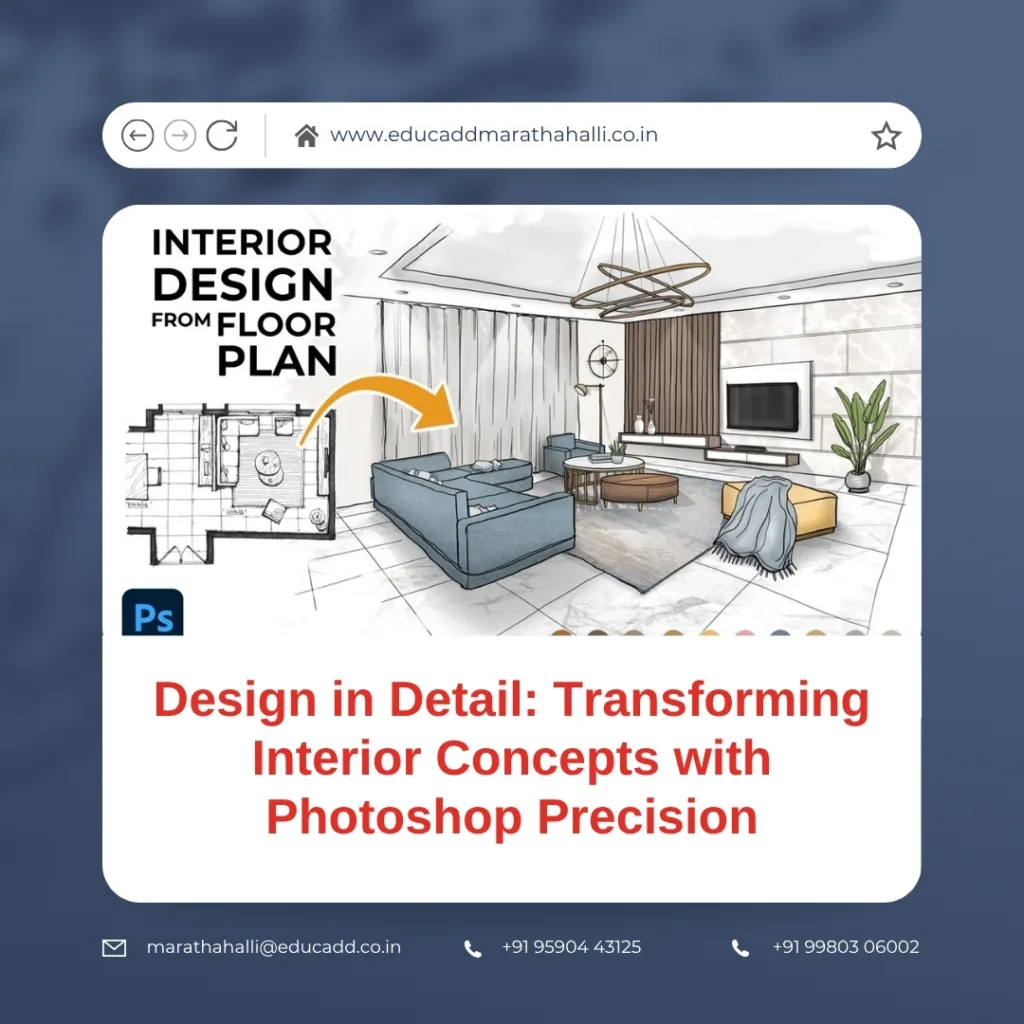
Photoshop Interior Design Ideas
1. The Importance of Visual Precision in Interior Design Presentations
Today’s interior design industry thrives on presentation power. Gone are the days when mood sketches and verbal descriptions could impress clients. Now, immersive visuals rule the game. And when it comes to producing those high-impact visuals, Photoshop Interior Design Ideas leads the way.
Why Photoshop? Because it brings every concept to life. Whether you’re designing a minimalist studio or a luxurious penthouse, Photoshop enables the creation of lifelike renderings that mirror your vision. These visualizations help clients truly experience the space—even before the first tile is laid.
Additionally, it shortens the feedback loop. Instead of reworking 3D models or explaining complex changes, designers can simply tweak a Photoshop layer. This means faster turnarounds and smoother communication. Clients appreciate seeing multiple options quickly, and Photoshop makes that flexibility possible.
Above all, precision becomes the designer’s strength. From the tone of a marble texture to the angle of a pendant lamp, everything can be adjusted and presented with finesse.
2. Using Photoshop to Develop Concept Boards and Visual Narratives
Every design begins with a story. Before the rendering or layout, comes the concept. And Photoshop Interior Design Ideas excels at bringing those early ideas together cohesively.
Start with a blank canvas. Drop in textures, lighting references, furniture images, and even typography samples. With Photoshop’s custom grids, guides, and layer groupings, assembling a visually striking concept board becomes intuitive and efficient.
For instance, when creating a modern coastal theme, you can integrate swatches of sandy neutrals, soft linens, and sea-inspired blues—then blend them with gradient overlays or blending modes for seamless transitions. This approach helps convey mood and style in one clean visual.
Another standout feature is the use of mood-enhancing filters. You can easily apply a soft vintage tone or a high-contrast modern style using Photoshop’s pre-set filters or adjustment layers. This visual consistency builds trust and establishes the emotional tone for your design.
Moreover, adding brief annotations or design notes using custom text styles can explain key decisions. Clients don’t just see your vision—they understand it.
Concept boards made in Photoshop are no longer just tools—they’re visual stories that guide the design journey from idea to execution.
3. Enhancing Room Visuals: From Photographs to Realistic Renderings
Imagine taking a raw photo of an empty room and turning it into a fully designed interior—right in Photoshop. That’s the magic it brings to your presentation toolbox.
Using cut-out images, stock textures, and custom lighting, designers can overlay their concepts directly onto real images. A simple bedroom can be transformed into a luxury suite with the drag-and-drop of furniture elements and a few shadow tweaks.
The key to realism lies in layer blending and light correction. For example, when adding a couch, you can use Perspective Warp to match the room’s angle. Then, use shadow brushes or the burn tool to ground the object, making it look like it belongs. Adjust the light using Color Balance and Hue/Saturation to match the room’s original lighting conditions.
Let’s say your client wants to see two flooring options—wood versus marble. Photoshop allows side-by-side comparisons without building separate renders from scratch. You just mask the flooring area and overlay textures. In under 10 minutes, you have a dual mockup ready.
This process isn’t just efficient. It builds client trust. They feel more confident when they can see the result. And that’s exactly how Photoshop enhances presentations—it turns potential into presence.
4. Photoshop Techniques Every Interior Designer Should Master
Now that we understand Photoshop Interior Design Ideas impact, let’s explore key techniques every interior designer should master. These skills not only improve your workflow but also drastically elevate your presentation quality.
1. Selections and Masking
Use tools like the Quick Selection Tool, Pen Tool, and Refine Edge to extract objects or isolate design elements cleanly. This is crucial when layering furniture or applying textures.
2. Smart Objects
Convert images into Smart Objects to preserve quality while resizing. This is perfect for drag-and-drop furniture or fabric patterns that need quick swaps.
3. Vanishing Point & Perspective Warp
These tools help fit objects naturally within spatial settings. Whether aligning a rug or repositioning artwork, proper perspective maintains realism.
4. Layer Styles and Shadow Effects
Apply subtle Drop Shadows, Bevel & Emboss, and Inner Glows to make objects feel integrated rather than pasted on. These small touches make a big difference.
5. Color Adjustments and Tone Matching
The Selective Color, Curves, and Brightness/Contrast adjustments allow for nuanced color correction. Want all elements to follow a cohesive palette? This is your go-to.
Also, Actions and Presets save time. Once you’ve created the perfect shadow or lighting combo, save it. Use it again with one click on the next room.
With consistent practice, these techniques make Photoshop an intuitive part of your design toolkit, not just a graphic tool.
5. Building Client-Ready Presentations and Portfolios with Photoshop
Ultimately, all your designs and visuals culminate in one final step: the presentation. Whether you’re pitching to a client, building a portfolio, or preparing a design proposal, how you package your visuals matters as much as what they show.
Photoshop helps create clean, professional layouts that reflect your brand. Start by defining your visual identity—fonts, colors, and margins—and use Photoshop templates to build consistency across all your slides or pages.
When presenting a project, include:
-
A polished cover page with project title and mood image.
-
A concept board that sets the narrative.
-
Room-by-room mockups enhanced in Photoshop.
-
Material boards that show fabric, flooring, lighting, etc.
-
A final summary slide with your contact and credits.
Want to impress even more? Use mockups of devices or brochures to showcase your design inside a magazine, tablet, or laptop. It adds real-world context and makes your work feel market-ready.
For portfolios, always save both high-resolution versions (for print) and compressed web versions (for websites and emails). Photoshop allows you to control output size and format, keeping visuals crisp across platforms.
Presentation isn’t just about what’s inside—it’s about how you frame it. With Photoshop, you’re not just showing a design—you’re telling a story and sealing a deal.
Conclusion: From Concept to Clarity with Photoshop
To sum up, mastering Photoshop Interior Design Ideas is no longer optional—it’s essential. In a world driven by visuals, the ability to communicate your ideas with precision, depth, and polish sets you apart. Photoshop helps you do just that.
From early ideation through to final presentation, this tool supports every phase. You can visualize moods, test materials, render rooms, and present portfolios—all without switching platforms. That streamlines your work and strengthens your brand.
Moreover, Photoshop makes collaboration smoother. Clients respond more positively when they can see before they decide. And in turn, designers gain creative freedom without technical limitations.
If you’re an aspiring designer or a seasoned professional looking to level up, start integrating Photoshop into your workflow today. Explore tutorials, practice consistently, and stay updated with the latest tools and techniques. With time, you’ll not only impress clients but also expand your creative boundaries.
Remember, every great interior begins as an idea—but with Photoshop, that idea becomes a vivid, convincing reality.

